
🚀 🪐 ✨ Jupyter MCP 服务器
Jupyter MCP 服务器是一个 Model Context Protocol (MCP) 服务器实现,它能让你与 📓 Jupyter 笔记本进行交互,这些笔记本可在任何 JupyterLab 环境中运行,包括你 💻 本地的 JupyterLab。



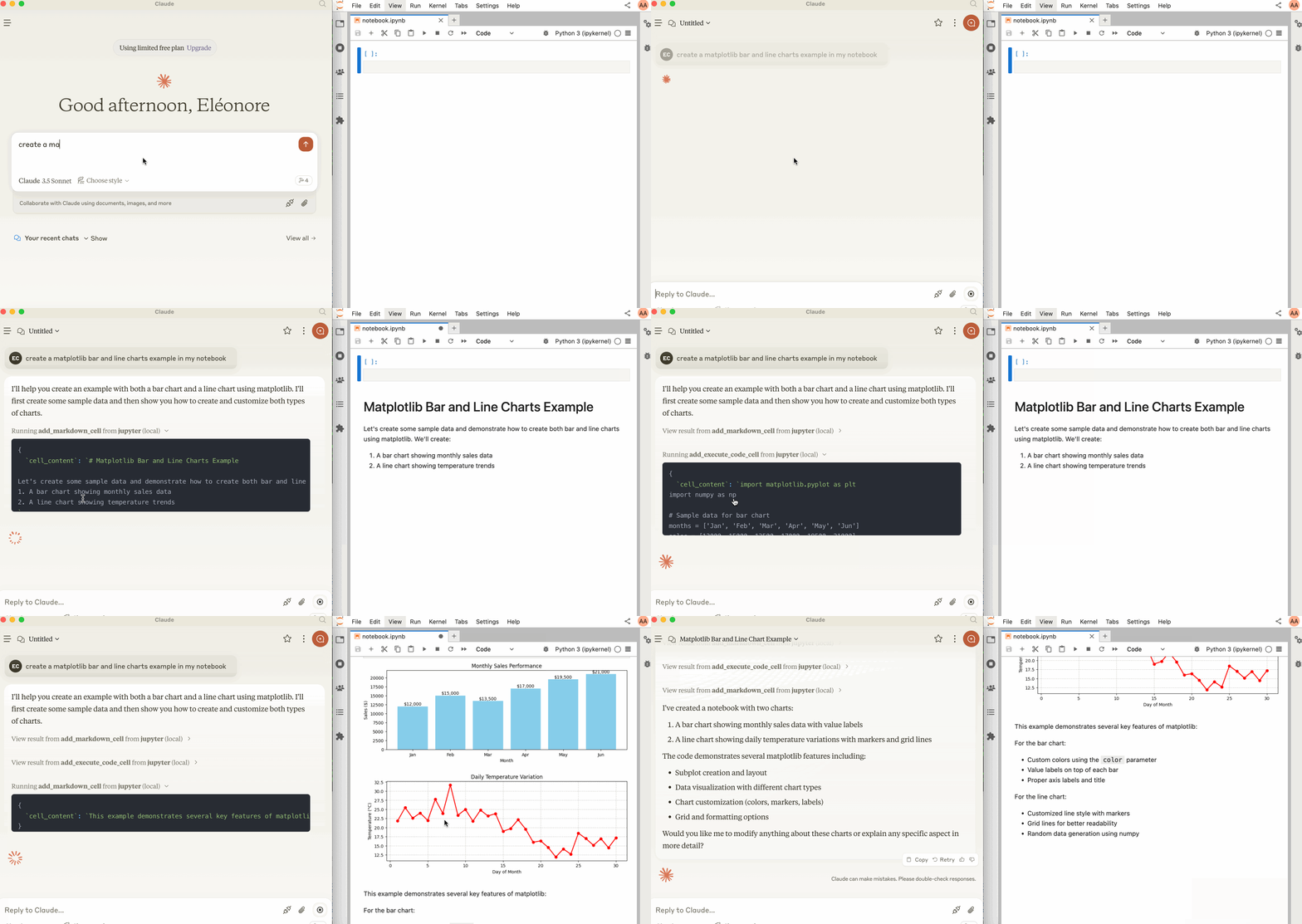
🚀 快速开始
📦 安装指南
确保安装以下软件包,其中协作包是必需的,因为借助 Jupyter 实时协作,它能让你在笔记本上看到所做的修改。
pip install jupyterlab jupyter-collaboration ipykernel
pip uninstall -y pycrdt datalayer_pycrdt
pip install datalayer_pycrdt
💻 使用示例
基础用法
使用以下命令启动 JupyterLab:
jupyter lab --port 8888 --IdentityProvider.token MY_TOKEN --ip 0.0.0.0
你也可以运行 make jupyterlab。
⚠️ 重要提示
--ip设置为0.0.0.0是为了使 MCP 服务器在 Docker 容器中运行时能够访问你的本地 JupyterLab。
与 Claude Desktop 结合使用
Claude Desktop 可从 这个页面 下载,支持 macOS 和 Windows 系统。对于 Linux 系统,我们成功使用了基于 nix 的 UNOFFICIAL 构建脚本。
# ⚠️ UNOFFICIAL
# 你也可以运行 `make claude-linux`
NIXPKGS_ALLOW_UNFREE=1 nix run github:k3d3/claude-desktop-linux-flake \
--impure \
--extra-experimental-features flakes \
--extra-experimental-features nix-command
要与 Claude Desktop 结合使用,需在你的 claude_desktop_config.json 中添加以下内容(有关更多详细信息,请参阅 MCP 官方文档网站)。
⚠️ 重要提示
SERVER_URL的值取决于你运行 JupyterLab 的位置。如果是在本地运行,应设置为http://localhost:8888;如果是通过云服务器,则需要相应的 URL 和端口。
配置示例
对于 macOS 或 Windows 系统:
cat $HOME/.config/Claude/desktop_config/claude_desktop_config.json
输出可能如下:
{
"mcp_server": {
"add_execute_code_cell": {
"description": "添加并执行 Jupyter 笔记本中的代码单元格",
"parameters": [
{
"name": "cell_content",
"type": "string",
"description": "要执行的代码"
}
],
"returns": "单元格输出"
},
"add_markdown_cell": {
"description": "添加 Jupyter 笔记本中的 Markdown 单元格",
"parameters": [
{
"name": "cell_content",
"type": "string"
}
]
}
}
}